![InQuartik Patentcloud Logo.png]](https://helpcenter.inquartik.com/hs-fs/hubfs/InQuartik%20Patentcloud%20Logo.png?height=40&name=InQuartik%20Patentcloud%20Logo.png)
1. Search History
Go to the Search History page. Under the Recent or Saved tabs, select the search queries you want to export (you may select multiple or all). Then click Export to download the file in Excel format.
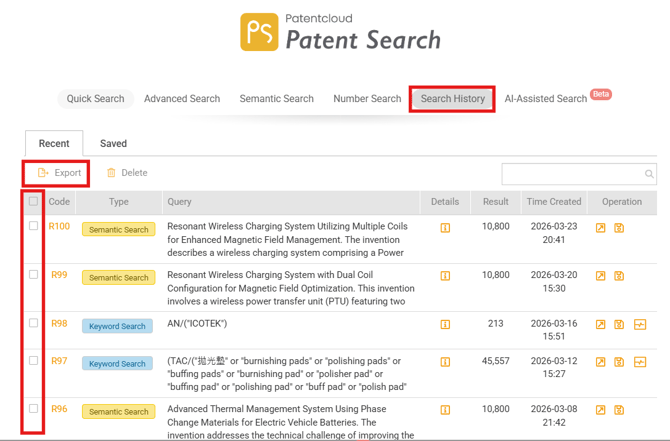
Note: Exported reports include search criteria, result counts, and patent authority details. Full patent lists are not included.
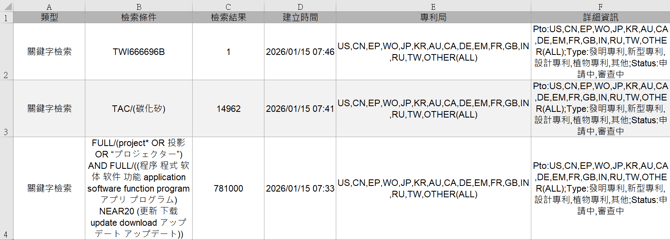
Example of exported file format shown above.
2. Advanced Search
Go to the Advanced Search page. Click Export to download the Advanced Search Report as an Excel file.
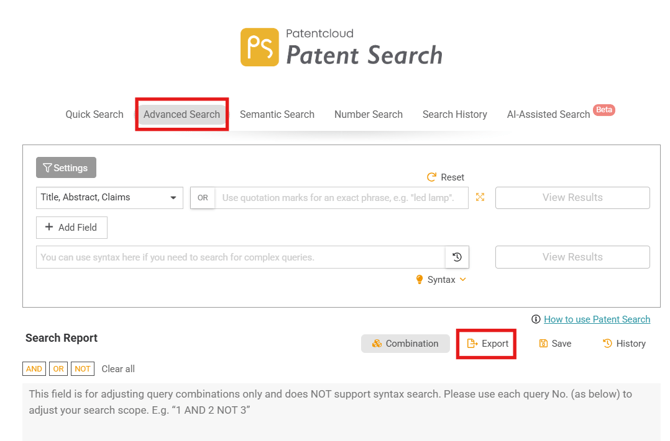
Note: Exported reports include search criteria, Boolean logic, and result counts. Full patent lists are not included.
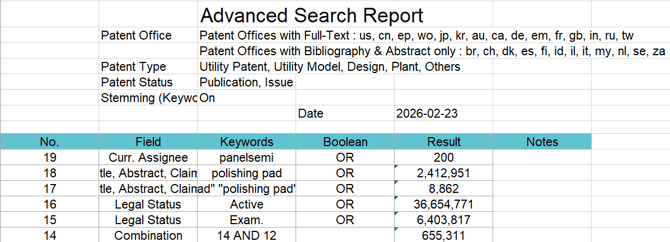
Example of exported file format shown above.
In order to export full patent lists from Patent Search (PS), please check:
https://helpcenter.inquartik.com/export-patent-1
3. Export Memos
Go to Patent Vault and select the Notes tab. Click Export Notes to export your data.
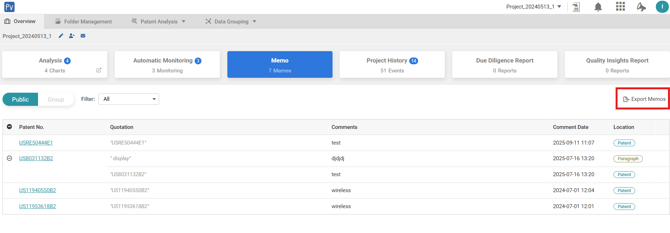
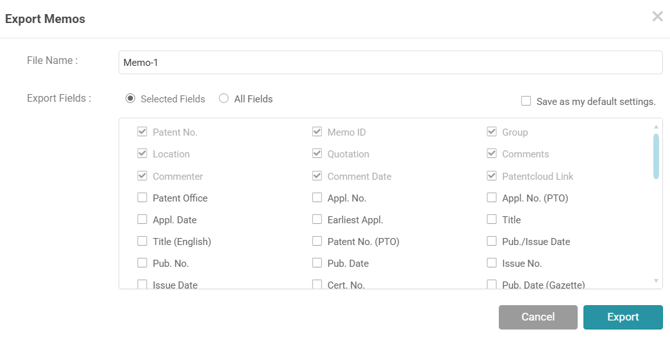
You can choose which fields to include (e.g., patent number, note content, applicant, publication details). Click Export to download the file in Excel format.
4. Export Charts
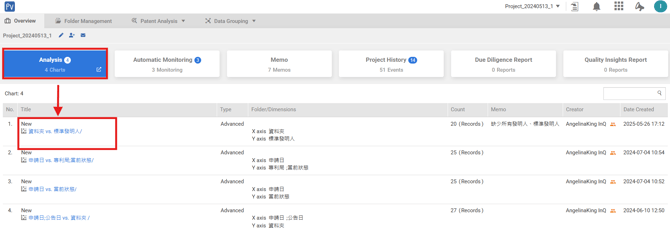
Go to Patent Vault, then navigate to the Overview tab. Click Analytics, and select the chart you want to export from the list.
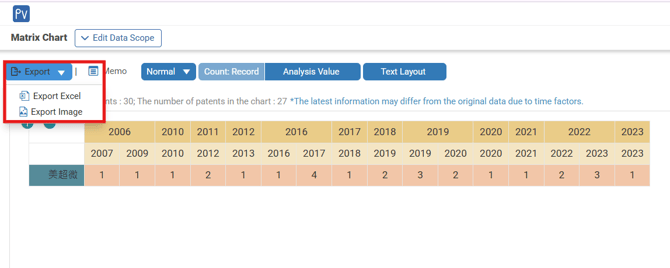
Click Export to download the chart as an Excel file or image.
In order to export full patent lists from Patent Vault (PV), please check: